
MedClock Setup Guide
For SMS users, you will receive a subscription token by email like the example below. Use this token during setup to enable SMS acknowledgements on your MedClock. If you're not using SMS alerts ignore this step.
Simply enter your token into MedClock during setup. There is no need to activate your subscription when you open the box. If your packaging mentions scanning a QR code to activate a subscription, you can ignore this — that only applies to some in-store purchases.
Important: WiFi is only required for:
- Sending SMS acknowledgements
- Automatic time correction
What This Device Does
MedClock helps remind you when medication needs to be taken. With a Premium Subscription enabled, MedClock can also send SMS confirmations to a selected contact when medication is acknowledged.
In the Box
- MedClock device
- USB power cable
- Instruction card
Step 1 — Power On
- Plug the device into power.
- MedClock will display the User Setup Page.
- You can only connect while the setup page is showing.
- If the clock is in Time Mode, unplug and reconnect power.
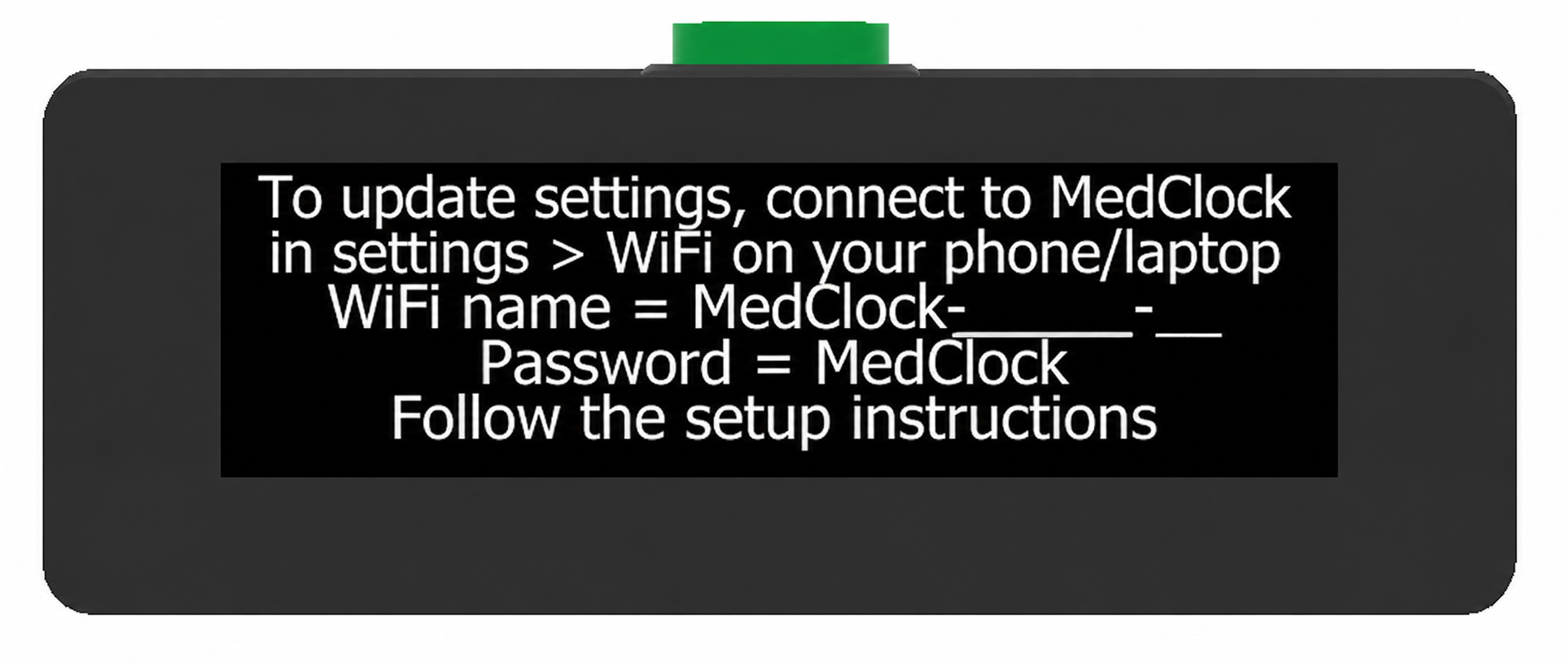
Step 2 — Connect Your Phone To MedClock WiFi
- Open WiFi settings.
- Connect to the WiFi shown on MedClock: MedClock-____-__
- Enter the password shown on your MedClock screen.
- Wait about 10–20 seconds for the setup page to open.
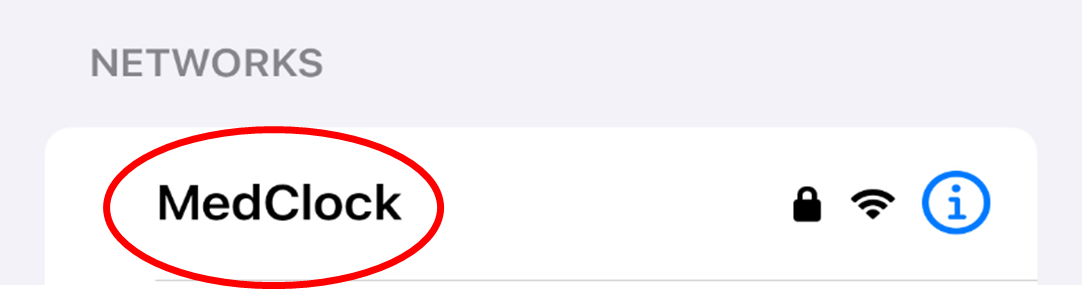
If the page does not open automatically, open a browser and enter: 192.168.4.1
.png)
Step 3 — Enter Your Details
- User name
- Country code and phone number for SMS alerts
- Your subscription token, if using SMS
- WiFi name and password, if using SMS or automatic time correction
If your WiFi is not visible press Scan.
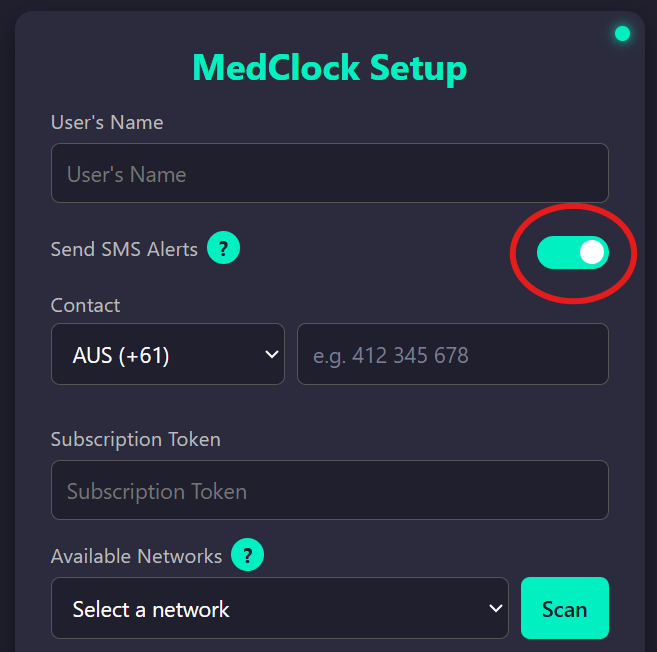
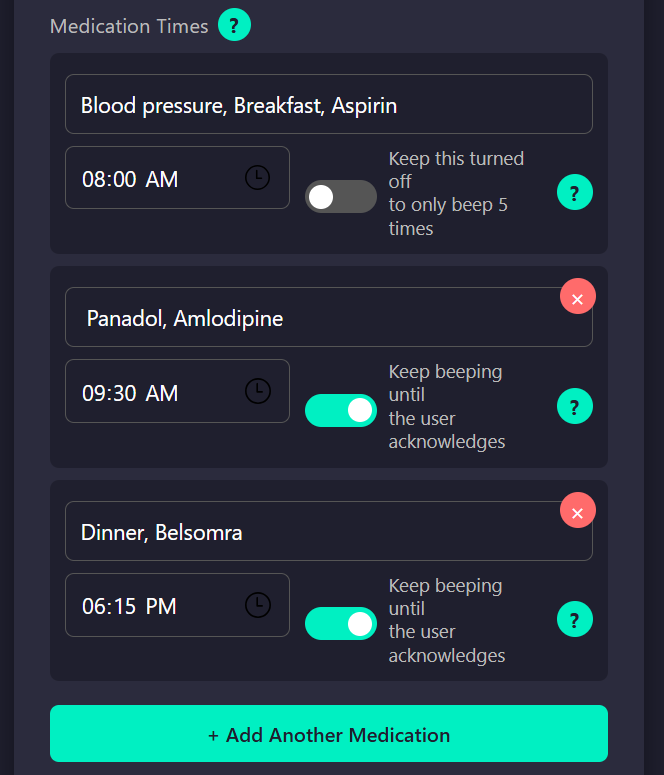
Step 4 — Set Medication Times
- Press Add Another Medication
- Set reminder times
- Up to 10 daily reminder times
- Up to 10 reminders per time slot
- Choose continuous beeping or 5 beeps only
Subscription users:
- First and last daily alerts send SMS confirmation.
- Other reminder times sound alerts only.
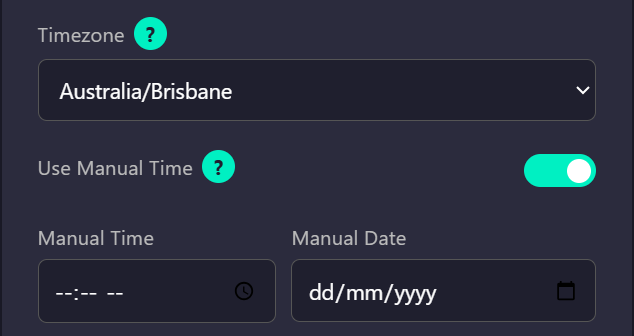
Step 5 — Time Settings
- Select your time zone.
- Leave Manual Time OFF unless needed.
- Automatic daylight saving is set for your time zone.
Step 6 — Check for MedClock Updates
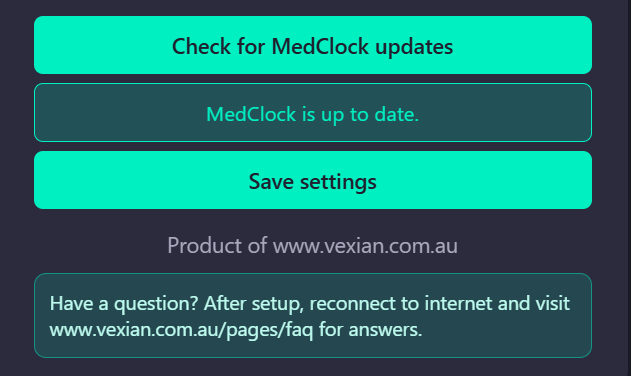
- Regularly check for available software updates on your MedClock.
- Press Check for Updates to see if a new version is available.
- If an update is available, press Update MedClock to install it.
- Watch the MedClock display during installation to see the estimated time remaining.
- Allow the update to complete fully without interruption.
Important: Check for updates every 6 months, or before contacting support with any issues. MedClock updates fix bugs, resolve issues, and add new features. Keeping your device up to date ensures optimal performance and access to the latest improvements.
Press Submit When Complete
- Check MedClock shows confirmation.
- Ensure MedClock doesn’t display any linking errors.
- SMS users should check that the subscription token shows LINKED.
- Check all settings are correct.
.png)
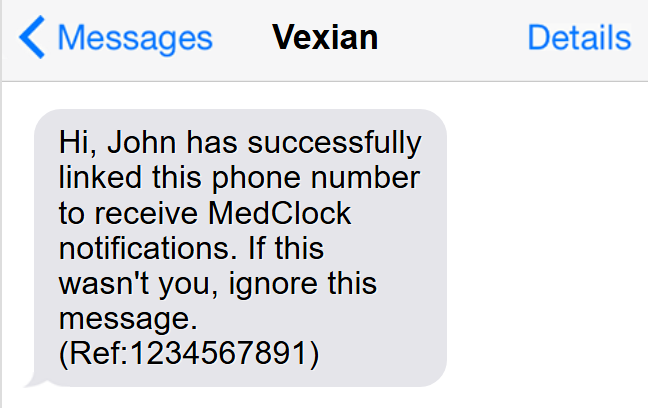
SMS users should receive a confirmation SMS within 2 minutes.
Setup is Complete
Using MedClock
- Wait for reminder alert.
- Press top button to acknowledge alert.
- Acknowledge each page within the alert.
- Alerts can be acknowledged up to 3 hours early.
- SMS users: first and last alerts send an SMS to your selected contact.
Important Notes
- WiFi is required for SMS acknowledgements and automatic time correction.
- MedClock can still be used without WiFi for reminder alerts only.
- Repeat setup if details change.
Important Disclaimer
MedClock is a reminder aid only and is not a medical or life-saving device. Regular welfare checks and routine medication times should continue as normal.
Unable To Connect To MedClock WiFi?
- Ensure you're connection to the right network displayed on MedClock
- Try connecting two more times.
- Move farther from nearby WiFi routers.
- Power cycle both MedClock and your phone.
- Try setup on the other side of the house to reduce interference.
- Try another device if needed.
Have Questions About MedClock?
- Setup and WiFi help
- Medication reminders
- Subscription tokens and SMS
- Troubleshooting and common questions
Need Help?
FAQ: www.vexian.com.au/pages/faq
Thank you for your purchase.
If you enjoy MedClock, please consider leaving a review.
© VEXIAN PTY LTD


